Creating professional PDF files is a common requirement in modern applications. Reports, invoices, eBooks, or even certificates often need the reliable PDF format. Java developers have many choices for libraries, but one stands out for its simplicity and open-source spirit: OpenPDF.
OpenPDF is a powerful library that lets you generate PDFs without complex configurations. You can create documents, style text, insert images, and manage tables with just a few lines of code. This tutorial will inspire you to take your Java applications to the next level by mastering OpenPDF.
Why Choose OpenPDF?
Developers value tools that strike a balance between power and freedom. OpenPDF offers precisely that. It is an open-source project licensed under the LGPL and MPL, making it safe for both personal and commercial projects.
Many libraries promise PDF generation, but they come with limitations or high costs. OpenPDF breaks that barrier. You get robust features without worrying about licenses. You also gain access to a community of contributors who constantly improve the library.
With OpenPDF, you can do much more than create static documents. You can dynamically generate invoices, reports, or interactive forms. Imagine automating document workflows for your users and giving them polished PDFs instantly. That’s the power OpenPDF brings to your hands.
For a software engineer, using OpenPDF means more than handling documents. It means delivering value to clients faster, with fewer restrictions, and with maximum flexibility.
Setting Up OpenPDF in Your Project
Before creating your first PDF, you need to add OpenPDF to your project. The library is available through Maven Central, which makes integration easy.
If you use Maven, add this dependency to your pom.xml:
<!-- https://mvnrepository.com/artifact/com.github.librepdf/openpdf -->
<dependency>
    <groupId>com.github.librepdf</groupId>
    <artifactId>openpdf</artifactId>
    <version>3.0.0</version>
</dependency>
After this step, your project is ready to work with PDFs. You don’t need extra configuration. OpenPDF works seamlessly with Java SE.
Once you set it up, run a quick test. Import the core classes and prepare your first document. In just a few lines, you’ll see the magic of OpenPDF in action.
Creating Your First PDF
The first step to mastery is creating a simple PDF with text. OpenPDF makes this straightforward.
Here’s a minimal Java program:
import com.lowagie.text.Document;
import com.lowagie.text.Paragraph;
import com.lowagie.text.pdf.PdfWriter;

import java.io.FileOutputStream;

public class SimplePDF {
    public static void main(String[] args) {
        try {
            Document document = new Document();
            PdfWriter.getInstance(document, new FileOutputStream("hello.pdf"));
            document.open();
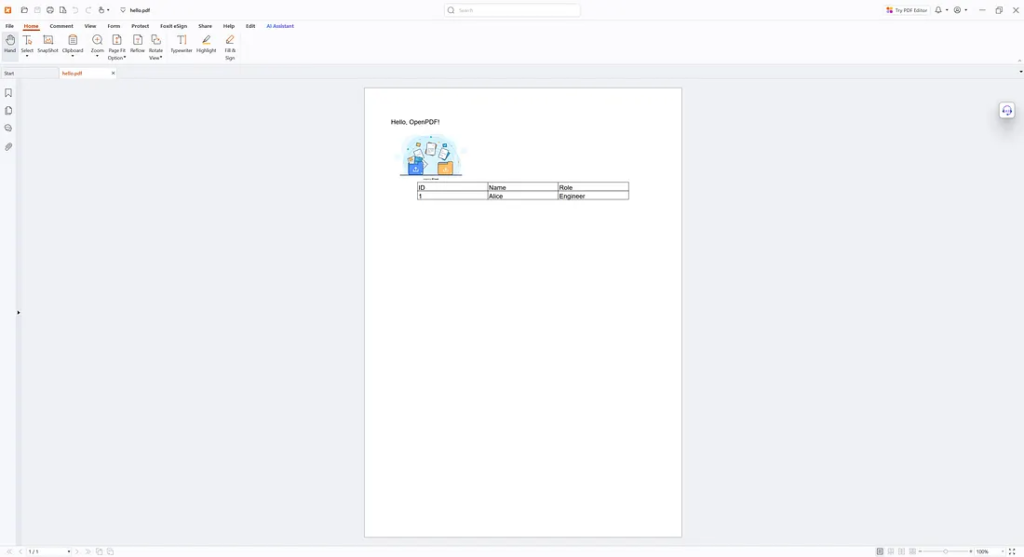
            document.add(new Paragraph("Hello, OpenPDF!"));
            document.close();
            System.out.println("PDF created successfully.");
        } catch (Exception e) {
            e.printStackTrace();
        }
    }
}
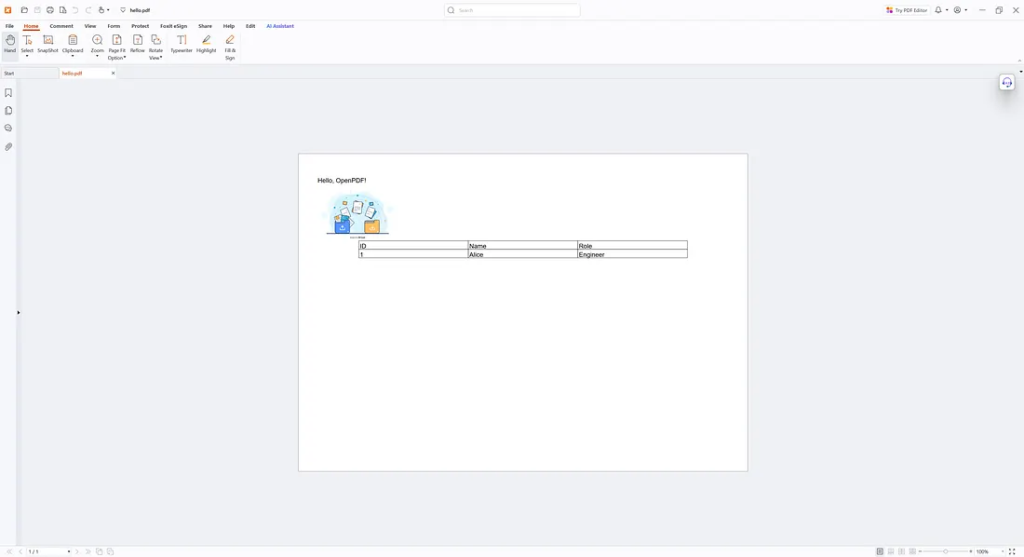
This snippet creates a PDF named hello.pdf with one line of text. Simple, clear, and effective.
When you run this program, a file opens in any PDF viewer. The joy of seeing your first generated PDF is the start of your OpenPDF journey.
Adding Fonts and Styling Text
Plain text works, but design matters. OpenPDF lets you style your content with custom fonts and formatting. You can control font size, color, and style.
Here’s an example:
import com.lowagie.text.Font;
import com.lowagie.text.FontFactory;

Font font = FontFactory.getFont(FontFactory.HELVETICA_BOLD, 18);
document.add(new Paragraph("Styled Heading", font));
You can combine different styles within a single document. Use bold for emphasis, italics for elegance, or colors for highlights.
Styling isn’t just cosmetic. Well-structured text improves readability. Invoices become professional. Reports look authoritative. Certificates shine with elegance.
When you master text styling, your PDFs transform from plain pages into polished documents. That’s where OpenPDF reveals its real potential.
Working with Images
Modern documents need visuals. OpenPDF makes inserting images straightforward.
import com.lowagie.text.Image;

Image img = Image.getInstance("logo.png");
img.scaleToFit(200, 100);
document.add(img);
In this snippet, the image is resized and added to the document. You can position images, align them, or even wrap text around them.
Adding images makes your documents more engaging. Think of company logos in invoices, charts in reports, or signatures in contracts.
When you integrate images, your PDFs go from functional to memorable. Users value documents that look professional, and OpenPDF empowers you to deliver precisely that.
Building Tables
Data often belongs in tables. OpenPDF provides a rich table API.
import com.lowagie.text.pdf.PdfPTable;
import com.lowagie.text.pdf.PdfPCell;

PdfPTable table = new PdfPTable(3);
table.addCell(new PdfPCell(new Paragraph("ID")));
table.addCell(new PdfPCell(new Paragraph("Name")));
table.addCell(new PdfPCell(new Paragraph("Role")));

table.addCell("1");
table.addCell("Alice");
table.addCell("Engineer");

document.add(table);
With this example, you create a three-column table with headers. You can control cell alignment, background colors, and borders.
Tables turn raw data into readable structures. They make reports more transparent and summaries more accessible. A well-designed table conveys information more effectively than paragraphs of text.
As a developer, learning to format tables in OpenPDF will make your documents stand out.
Adding Metadata
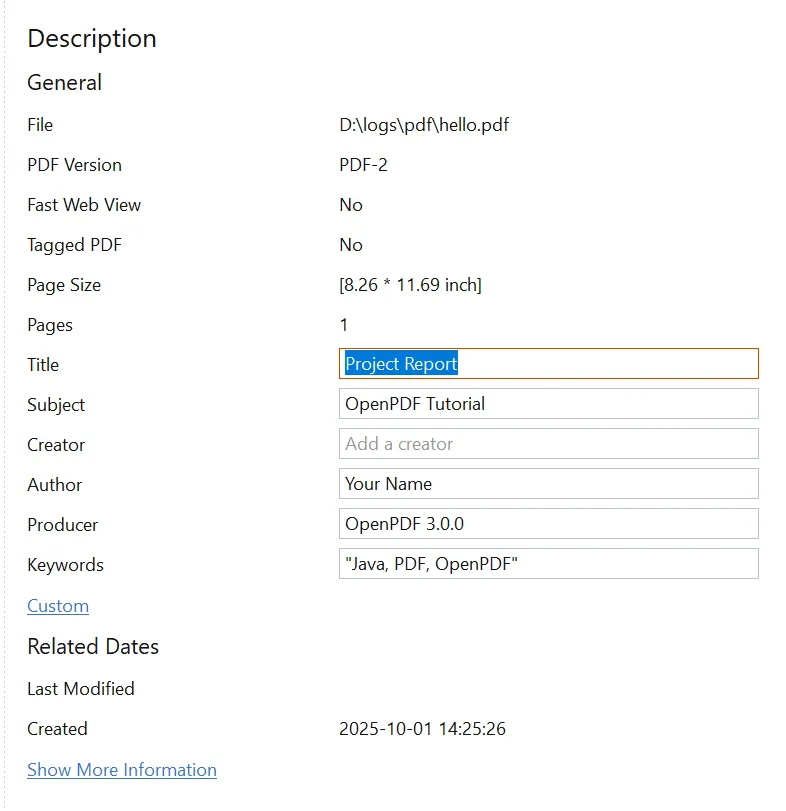
A professional PDF should contain metadata. This includes title, author, subject, and keywords. Metadata improves document organization and discoverability.
document.addTitle("Project Report");
document.addAuthor("Your Name");
document.addSubject("OpenPDF Tutorial");
document.addKeywords("Java, PDF, OpenPDF");
Metadata is invisible but powerful. It helps when users search for documents or when software organizes large libraries.
By including metadata, you elevate your documents from casual to professional. It shows attention to detail, which clients always appreciate.
Handling Page Layout
Layout defines user experience. OpenPDF allows you to manage margins, headers, and footers.
Document document = new Document(PageSize.A4, 50, 50, 50, 50);
Here, margins are set to 50 units. You can customize them to suit your specific needs.
For headers and footers, you can use event handlers. This allows you to repeat information, such as page numbers, dates, or company names, across all pages.
A good layout makes documents easier to read. With OpenPDF, you have complete control over the appearance and design of each page.
Using Custom Fonts with TTF Files
Sometimes, the built-in fonts aren’t enough. You may need brand-specific fonts or support for multiple languages. OpenPDF lets you load TrueType Font (TTF) files directly.
Here’s an example of using a custom font:
import com.lowagie.text.Font;
import com.lowagie.text.pdf.BaseFont;

BaseFont customBaseFont = BaseFont.createFont("fonts/Roboto-Regular.ttf", BaseFont.IDENTITY_H, BaseFont.EMBEDDED);
Font customFont = new Font(customBaseFont, 14);

document.add(new Paragraph("This text uses a custom TTF font!", customFont));
In this code:
"fonts/Roboto-Regular.ttf"is the path to your font file. Place the TTF inside your project resources.BaseFont.IDENTITY_HEnsures proper Unicode support, which is essential for multilingual documents.BaseFont.EMBEDDEDEmbeds the font into the PDF, so it works on any machine, even if the font isn’t installed.
Custom fonts elevate your PDFs. They allow you to reflect brand identity, support special characters, and enhance design. For example, an international application can use fonts with Asian, Arabic, or Cyrillic scripts seamlessly.
With TTF support, OpenPDF gives you complete freedom over typography. Your PDFs won’t just be readable — they’ll look unique and professional.
Setting A4 to Landscape Orientation
Not every document fits neatly into portrait mode. Wide tables, charts, or graphics often appear more visually appealing in landscape orientation. OpenPDF makes it easy to rotate pages.
Here’s how you can set the document to A4 landscape
import com.lowagie.text.Document;
import com.lowagie.text.PageSize;

Document document = new Document(PageSize.A4.rotate());
In this snippet:
PageSize.A4Defines the standard A4 page size..rotate()Switches it from portrait to landscape.
From this point forward, all subsequent pages in the document will follow the landscape orientation. You can combine this with margins, headers, and footers for complete control over the layout.
Landscape PDFs improve readability when content spans horizontally. They’re great for financial reports, wide schedules, or design previews. By mastering orientation, you give your users a smoother reading experience.
Inserting Page Breaks
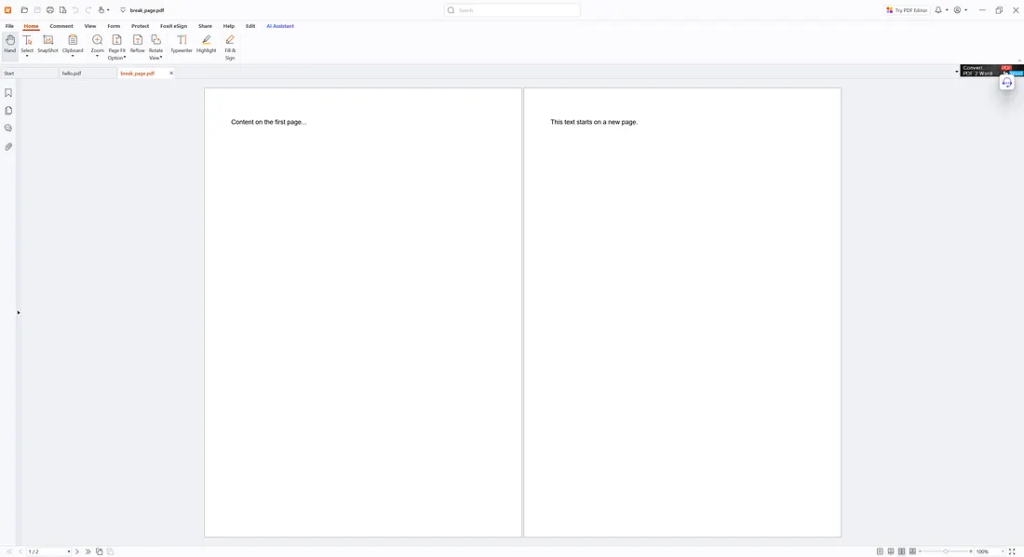
Long documents often require manual control over where new pages start. OpenPDF makes this effortless with the newPage() method.
Here’s a simple example:
import com.lowagie.text.Document;
import com.lowagie.text.Paragraph;

document.add(new Paragraph("Content on the first page..."));
document.newPage();
document.add(new Paragraph("This text starts on a new page."));
In this snippet:
document.newPage()forces the PDF to begin a new page.- Any content added after this method appears on the new page.
This feature is beneficial when creating reports with multiple sections. You can start each section on a clean page. Certificates, invoices, or chapter-based eBooks also benefit from controlled page breaks.
By using newPage(), you ensure your PDFs remain structured and professional. It gives readers a smooth flow without overcrowding a single page.
Creating a PDF Invoice with Mock Data
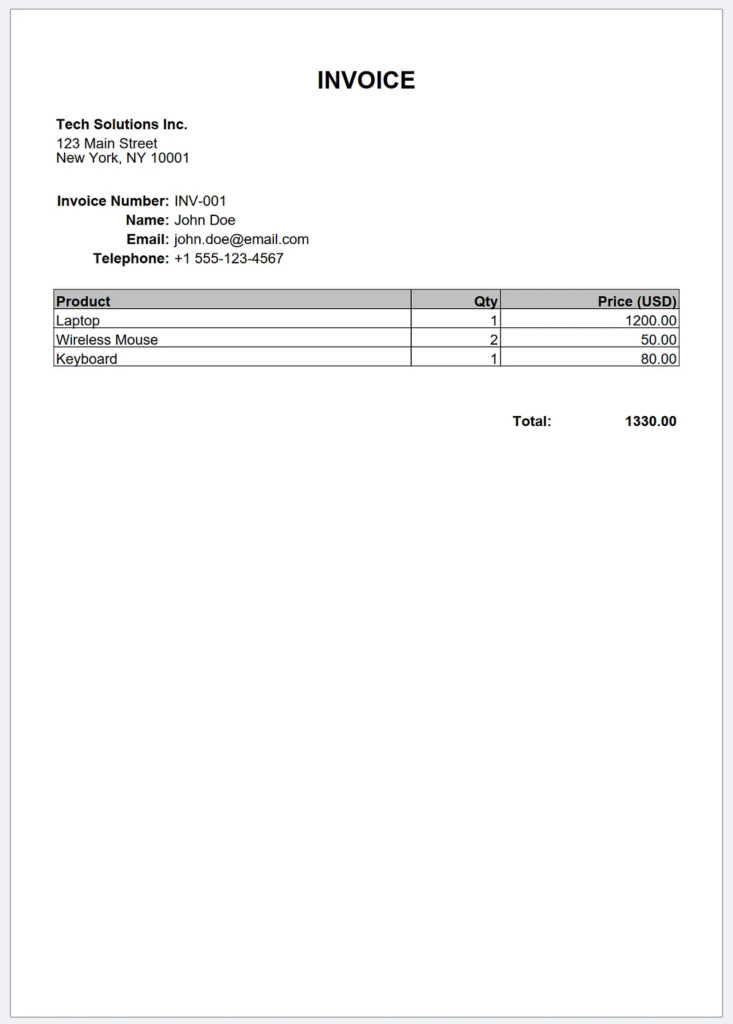
A powerful way to showcase OpenPDF is by generating an invoice. Invoices need tables, text styling, metadata, and sometimes logos. With OpenPDF, you can build them in just a few steps.
Here’s an example:
import com.lowagie.text.*;
import com.lowagie.text.pdf.*;

import java.io.FileOutputStream;

public class InvoiceExample {
    public static void main(String[] args) {
       try {
            Document document = new Document(PageSize.A4);
            PdfWriter.getInstance(document, new FileOutputStream("invoice.pdf"));
            document.open();

            float newSection = 20f;

            // Title
            Font titleFont = FontFactory.getFont(FontFactory.HELVETICA_BOLD, 20);
            Paragraph title = new Paragraph("INVOICE", titleFont);
            title.setAlignment(Element.ALIGN_CENTER);
            document.add(title);

            Paragraph textBlock = new Paragraph("");
            textBlock.setSpacingAfter(newSection);
            document.add(textBlock);

            Font subTitleFont = FontFactory.getFont(FontFactory.HELVETICA_BOLD, 12);
            Font dataFont = FontFactory.getFont(FontFactory.HELVETICA, 12);

            PdfPTable companyTable = new PdfPTable(1);
            companyTable.setWidthPercentage(100);
            companyTable.setHorizontalAlignment(Element.ALIGN_LEFT);
            addTableCell(companyTable, "Tech Solutions Inc.", Element.ALIGN_LEFT, subTitleFont, 1);
            addTableCell(companyTable, "123 Main Street\nNew York, NY 10001\n", Element.ALIGN_LEFT, dataFont, 1);

            document.add(companyTable);

            textBlock = new Paragraph("");
            textBlock.setSpacingAfter(newSection);
            document.add(textBlock);


            PdfPTable informationTable = new PdfPTable(2);
            informationTable.setWidths(new float[]{0.17f, 0.73f});
            informationTable.setWidthPercentage(100);
            informationTable.setHorizontalAlignment(Element.ALIGN_LEFT);

            addTableCell(informationTable, "Invoice Number:", Element.ALIGN_RIGHT, subTitleFont, 1);
            addTableCell(informationTable, "INV-001", Element.ALIGN_LEFT, dataFont, 1);

            addTableCell(informationTable, "Name:", Element.ALIGN_RIGHT, subTitleFont, 1);
            addTableCell(informationTable, "John Doe", Element.ALIGN_LEFT, dataFont, 1);

            addTableCell(informationTable, "Email:", Element.ALIGN_RIGHT, subTitleFont, 1);
            addTableCell(informationTable, "[email protected]", Element.ALIGN_LEFT, dataFont, 1);

            addTableCell(informationTable, "Telephone:", Element.ALIGN_RIGHT, subTitleFont, 1);
            addTableCell(informationTable, "+1 555-123-4567", Element.ALIGN_LEFT, dataFont, 1);

            document.add(informationTable);

            textBlock = new Paragraph("");
            textBlock.setSpacingAfter(newSection);
            document.add(textBlock);

            // Product table
            PdfPTable table = new PdfPTable(3);
            table.setWidthPercentage(100);
            table.setWidths(new int[]{4, 1, 2});

            Font headerFont = FontFactory.getFont(FontFactory.HELVETICA_BOLD, 12);

            PdfPCell h1 = new PdfPCell(new Phrase("Product", headerFont));
            PdfPCell h2 = new PdfPCell(new Phrase("Qty", headerFont));
            PdfPCell h3 = new PdfPCell(new Phrase("Price (USD)", headerFont));

            h1.setHorizontalAlignment(Element.ALIGN_LEFT);
            h1.setBackgroundColor(Color.LIGHT_GRAY);
            h2.setHorizontalAlignment(Element.ALIGN_RIGHT);
            h2.setBackgroundColor(Color.LIGHT_GRAY);
            h3.setHorizontalAlignment(Element.ALIGN_RIGHT);
            h3.setBackgroundColor(Color.LIGHT_GRAY);

            table.addCell(h1);
            table.addCell(h2);
            table.addCell(h3);

            // Row 1
            table.addCell("Laptop");
            PdfPCell q1 = new PdfPCell(new Phrase("1"));
            q1.setHorizontalAlignment(Element.ALIGN_RIGHT);
            table.addCell(q1);
            PdfPCell p1 = new PdfPCell(new Phrase("1200.00"));
            p1.setHorizontalAlignment(Element.ALIGN_RIGHT);
            table.addCell(p1);

            // Row 2
            table.addCell("Wireless Mouse");
            PdfPCell q2 = new PdfPCell(new Phrase("2"));
            q2.setHorizontalAlignment(Element.ALIGN_RIGHT);
            table.addCell(q2);
            PdfPCell p2 = new PdfPCell(new Phrase("50.00"));
            p2.setHorizontalAlignment(Element.ALIGN_RIGHT);
            table.addCell(p2);

            // Row 3
            table.addCell("Keyboard");
            PdfPCell q3 = new PdfPCell(new Phrase("1"));
            q3.setHorizontalAlignment(Element.ALIGN_RIGHT);
            table.addCell(q3);
            PdfPCell p3 = new PdfPCell(new Phrase("80.00"));
            p3.setHorizontalAlignment(Element.ALIGN_RIGHT);
            table.addCell(p3);

            document.add(table);

            document.add(Chunk.NEWLINE);

            // Summary total
            PdfPTable summary = new PdfPTable(2);
            summary.setWidthPercentage(40);
            summary.setHorizontalAlignment(Element.ALIGN_RIGHT);
            summary.setWidths(new int[]{2, 2});

            PdfPCell label = new PdfPCell(new Phrase("Total:", headerFont));
            label.setBorder(Rectangle.NO_BORDER);
            label.setHorizontalAlignment(Element.ALIGN_RIGHT);

            PdfPCell total = new PdfPCell(new Phrase("1330.00", headerFont));
            total.setBorder(Rectangle.NO_BORDER);
            total.setHorizontalAlignment(Element.ALIGN_RIGHT);

            summary.addCell(label);
            summary.addCell(total);

            document.add(summary);

            document.close();
            System.out.println("Invoice PDF created.");
        } catch (Exception e) {
            e.printStackTrace();
        }
    }

    private static void addTableCell(PdfPTable table, String text, int alignment, Font font, int colSpan) {
        PdfPCell cell = new PdfPCell(new Phrase(text, font));
        cell.setHorizontalAlignment(alignment);
        cell.setBorder(Rectangle.NO_BORDER);
        cell.setColspan(colSpan);
        table.addCell(cell);
    }

}
Key Highlights
- Title: Bold and centered for professionalism.
- Company Details: Left-aligned block of text.
- Customer Info: Simple text fields for name, email, and phone.
- Table: Three columns (Product, Qty, Price). Numbers align right, both in the header and in the detail rows.
- Summary: Positioned to the right, showing an explicit total in USD.
With this approach, you can generate invoices dynamically by pulling product and customer data from your database. Each invoice will look professional, consistent, and ready for clients.
License of OpenPDF
Before adopting any library, developers must understand its license. OpenPDF is licensed under a dual license: LGPL and MPL.
- LGPL (Lesser General Public License) allows you to use the library in commercial and closed-source projects, as long as you don’t modify the library itself.
- MPL (Mozilla Public License) also allows commercial use but requires that any modifications to the library code itself be shared back with the community.
This dual licensing model gives you flexibility. If you only link against OpenPDF, you can safely use it in private or commercial projects. If you improve the library itself, you must contribute those changes under the same license terms.
This balance ensures freedom for developers while encouraging collaboration. It is one of the reasons OpenPDF continues to thrive. You gain powerful PDF features without worrying about heavy licensing fees or legal restrictions.
For full details, you can review the official license files on the OpenPDF GitHub repository.
GitHub – LibrePDF/OpenPDF: OpenPDF is an open-source Java library for creating, editing, rendering, and encrypting PDF documents, as well as generating PDFs from HTML. It is licensed under the LGPL and MPL.
Creating Dynamic Documents
The real power of OpenPDF lies in its automation capabilities. Imagine generating PDFs from user input or database queries.
For example, an e-commerce platform can generate invoices after each purchase is made. A university system can automatically issue student certificates.
Using Java and OpenPDF together, you can pull data dynamically and transform it into a structured PDF. This level of automation saves time and improves accuracy.
Dynamic PDF generation is more than a feature. It is a value-add that can set your application apart. Clients appreciate automation because it streamlines workflows and minimizes manual effort.
Advanced Features
OpenPDF doesn’t stop at basics. You can create forms, add annotations, and even secure documents with passwords.
Form creation enables interactive fields, allowing users to type directly in the PDF. Annotations let you highlight text or add notes. Security features protect sensitive information with encryption.
These advanced features unlock professional use cases. They give your documents interactivity, safety, and usability beyond static text.
By exploring these options, you transition from simply creating PDFs to designing comprehensive document solutions.
Finally
PDF creation isn’t just a technical skill. It’s a way to deliver polished, professional experiences for your users. With OpenPDF, you hold the power to generate documents that inspire trust, save time, and look beautiful.
You started with a simple “Hello, PDF!” and now you know how to style text, insert images, create tables, and automate documents. Every project you build from here can leverage these skills.
OpenPDF is more than a library. It’s a bridge between your code and the professional world of documents. Embrace it, experiment with it, and watch your applications shine.
This article was originally published on Medium.