Building a guided workflow helps users complete complex tasks with less friction. Multi-step wizards support onboarding, checkout flows, and advanced data collection. Angular 20 and PrimeNG provide a solid foundation for crafting these guided experiences. The combination of Reactive Forms and PrimeNG p-steps offers strong validation, clean navigation, and flexible logic.
This tutorial shows you how to build a complete multi-step form wizard. You will navigate through steps, validate data across pages, apply conditional logic, and generate a clear submission summary.
Why Choose PrimeNG p-steps?
PrimeNG’s p-steps component creates a visual progression bar. It guides the user from one form section to another. Each step highlights the user’s position and reduces confusion. Angular’s Reactive Forms add structure and control. With both tools, you can build dynamic flows that stay clean and maintainable.
Project Setup

Build Stunning Interfaces with Angular and PrimeNG
Designing the Wizard Structure
The wizard includes three parts.
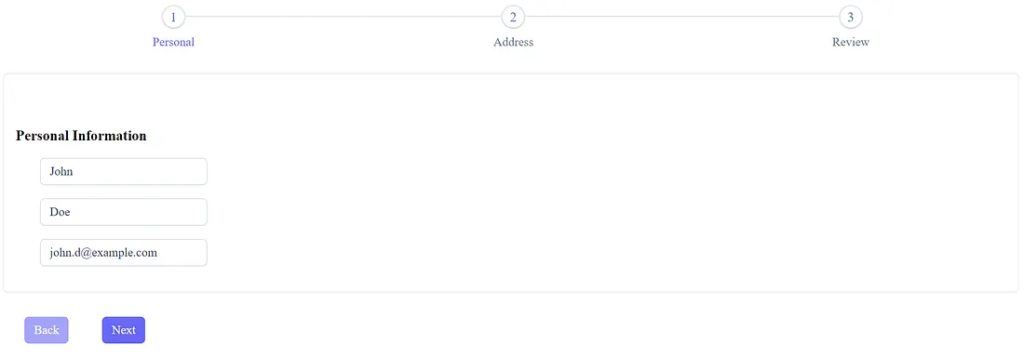
Step 1: Basic personal data
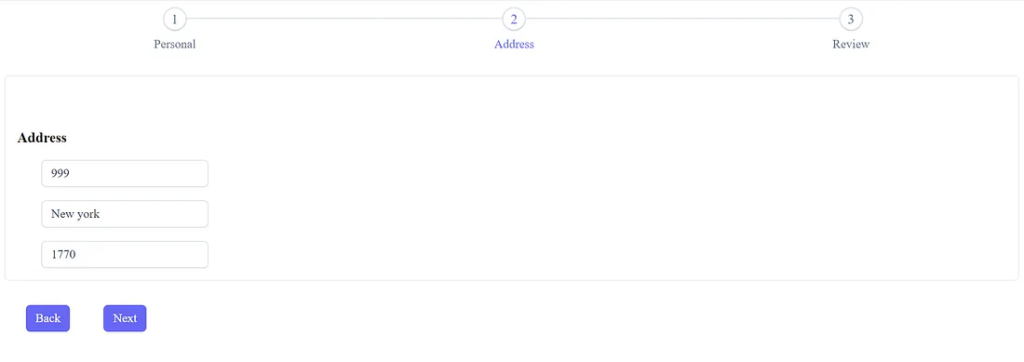
Step 2: Address data with conditional fields
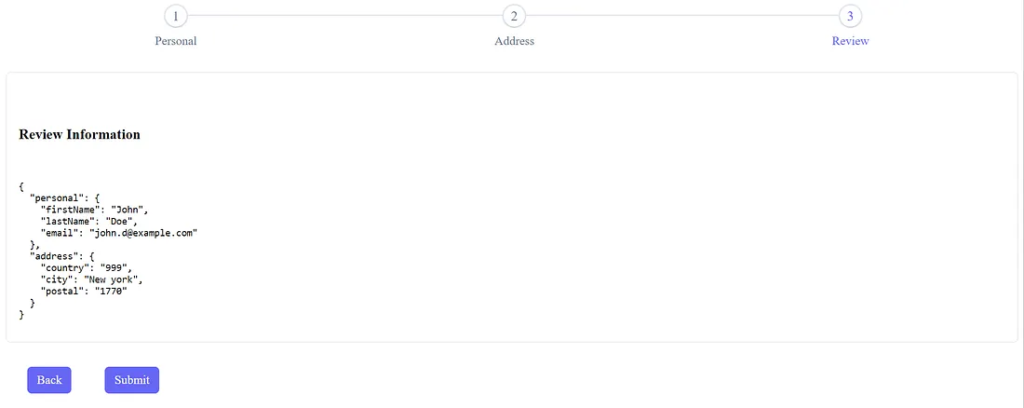
Step 3: Review and submit
Create a component:
>ng generate component wizard
Inside this component, define the steps:
import { Component } from '@angular/core';

@Component({
  selector: 'app-wizard',
  imports: [],
  templateUrl: './wizard.html',
  styleUrl: './wizard.css',
})
export class Wizard {
  current = 0; //The component will track the current index

  items = [{ label: 'Personal' }, { label: 'Address' }, { label: 'Review' }];
}
Creating the Main Form Group
A multi-step wizard works best as a single FormGroup. Each step maps to a nested group. This structure supports cross-step validation and summary generation.
form = this.fb.group({
  personal: this.fb.group({
    firstName: ['', Validators.required],
    lastName: ['', Validators.required],
    email: ['', [Validators.required, Validators.email]]
  }),
  address: this.fb.group({
    country: ['', Validators.required],
    city: [''],
    postal: ['']
  })
});
Although the steps appear separated visually, all fields belong to the same data model. This organization simplifies data inspection at the review stage.
Navigating Between Steps
Users must move forward only when the current step is valid. Add helper methods:
next() {
  const group = this.getCurrentGroup();
  if (group.invalid) {
    group.markAllAsTouched();
    return;
  }
  this.current++;
}

prev() {
  if (this.current > 0) {
    this.current--;
  }
}
The method getCurrentGroup() returns the nested form group based on current:
getCurrentGroup() {
  return this.current === 0
    ? this.form.get('personal')
    : this.form.get('address');
}
The wizard now restricts navigation until each page passes validation.
Displaying Each Step
Use structural directives to show a section based on the index.
<p-steps [model]="items" [activeIndex]="current"></p-steps>

<div class="step-container">

  @if (current === 0) {
  <div>
    <h3>Personal Information</h3>
    <input pInputText placeholder="First name" formControlName="firstName">
    <input pInputText placeholder="Last name" formControlName="lastName">
    <input pInputText placeholder="Email" formControlName="email">
  </div>
  }

  @if (current === 1) {
  <div>
    <h3>Address</h3>
    <input pInputText placeholder="Country" formControlName="country">
    <input pInputText placeholder="City" formControlName="city">
    <input pInputText placeholder="Postal" formControlName="postal">
  </div>
  }

  @if (current === 2) {
  <div>
    <h3>Review</h3>
    <pre>{{ form.value | json }}</pre>
  </div>
  }

</div>

<div class="btn-row">
  <button pButton label="Back" (click)="prev()" [disabled]="current===0"></button>

  @if (current < 2) {
  <button pButton label="Next" (click)="next()"></button>
  }

  @if (current === 2) {
  <button pButton label="Submit" (click)="submit()"></button>
  }
</div>
All input controls must belong to their respective form groups. Wrap the markup for each step with formGroupName:
<div [formGroup]="form">
  @if (current === 0) {
  <div formGroupName="personal"> ... </div>
  }
  @if (current === 1) {
  <div formGroupName="address"> ... </div>
  }
</div>
Conditional Logic in the Wizard
Conditional logic improves user experience. You might hide the city field until a specific country is selected. Reactive Forms support this pattern.
Add logic that clears city and postal codes when the selected country does not require them:
this.form.get('address.country')?.valueChanges.subscribe(country => {
  if (country !== 'USA') {
    this.form.get('address.city')?.setValue('');
    this.form.get('address.postal')?.setValue('');
  }
});
This behavior prevents invalid data from being submitted. It also reduces errors because users see fewer unnecessary inputs.
Another common condition involves unlocking later steps. For example, a user must provide a valid email before reaching the address section. This rule was already enforced by the navigation guard earlier. If you need more advanced rules, you can disable steps that depend on prior values.
disableAddress = computed(() => this.form.get('personal')?.invalid);This pattern helps build smooth user journeys that adjust as data changes.
Validating User Data Across All Wizard Steps
A multi-step wizard must maintain integrity across separate areas. Strong validation ensures reliable data and reduces the need for back-and-forth corrections. Angular’s Reactive Forms system manages validation across the entire model.
Start by validating each nested group independently. This separation keeps each step clean. However, you may need to validate relationships between steps. For example, you can verify that the user’s email domain is from an allowed country. A custom validator handles this logic.
Here is a simple example:
validateEmailCountry(form: AbstractControl) {
  const email = form.get('personal.email')?.value;
  const country = form.get('address.country')?.value;
  if (email && country === 'USA' && !email.endsWith('.com')) {
    return { domainError: true };
  }
  return null;
}
Apply this validator at the root level:
form = this.fb.group(
  { personal: ..., address: ... },
  { validators: [this.validateEmailCountry] }
);
Angular triggers this validation whenever nested values change. A user sees an immediate error during the review step. Consequently, the wizard delivers better accuracy.
Cross-step validation gives teams greater control. It makes the wizard more resilient and reduces the need for server-side corrections. This pattern leads to cleaner APIs and fewer rejected submissions.
Summary Step and Final Submission
Users must confirm all provided information. The review page displays the entire model in either formatted JSON or custom markup.
Add the submission method:
submit() {
  if (this.form.invalid) {
    return;
  }
  console.log('Submitted:', this.form.value);
}
The user sees all entered values. They can navigate back and correct mistakes. Clear visibility enhances trust and reduces frustration.
Improving UX with PrimeNG Styling
PrimeNG components offer strong styling options. You can add spacing and layout utilities to improve clarity. For example:
.step-container {
  margin-top: 2rem;
}

.btn-row {
  margin-top: 2rem;
  display: flex;
  gap: 1rem;
}
These styles support a clean layout. They also keep the wizard readable and predictable.
Directory Structure
src/
 └── app/
     └── wizard/
         ├── wizard.ts
         ├── wizard.html
         ├── wizard.css
         └── wizard.spec.ts
     └── app.routes.ts
 └── main.ts
 └── index.html
This structure keeps the wizard isolated and easy to maintain.
wizard.ts
import { Component, computed, inject } from '@angular/core';
import { FormBuilder, Validators, AbstractControl } from '@angular/forms';

@Component({
  selector: 'app-wizard',
  templateUrl: './wizard.html',
  styleUrls: ['./wizard.css']
})
export class WizardComponent {

  fb = inject(FormBuilder);

  items = [
    { label: 'Personal' },
    { label: 'Address' },
    { label: 'Review' }
  ];

  current = 0;

  form = this.fb.group(
    {
      personal: this.fb.group({
        firstName: ['', Validators.required],
        lastName: ['', Validators.required],
        email: ['', [Validators.required, Validators.email]]
      }),
      address: this.fb.group({
        country: ['', Validators.required],
        city: [''],
        postal: ['']
      })
    },
    { validators: [this.validateEmailCountry] }
  );

  constructor() {
    this.form.get('address.country')?.valueChanges.subscribe(c => {
      if (c !== 'USA') {
        this.form.get('address.city')?.setValue('');
        this.form.get('address.postal')?.setValue('');
      }
    });
  }

  validateEmailCountry(form: AbstractControl) {
    const email = form.get('personal.email')?.value;
    const country = form.get('address.country')?.value;

    if (email && country === 'USA' && !email.endsWith('.com')) {
      return { domainError: true };
    }
    return null;
  }

  getCurrentGroup() {
    return this.current === 0
      ? this.form.get('personal')
      : this.form.get('address');
  }

  next() {
    const group = this.getCurrentGroup();
    if (group?.invalid) {
      group.markAllAsTouched();
      return;
    }
    this.current++;
  }

  prev() {
    if (this.current > 0) {
      this.current--;
    }
  }

  submit() {
    if (this.form.invalid) {
      return;
    }
    console.log('Submitted', this.form.value);
    alert('Form submitted. Check console for output.');
  }
}
wizard.html
<p-steps [model]="items" [activeIndex]="current"></p-steps>

<div class="step-container" [formGroup]="form">

     @if (current === 0) {
     <div formGroupName="personal">
          <h3>Personal Information</h3>

          <input pInputText placeholder="First Name" formControlName="firstName">
          <br><br>

          <input pInputText placeholder="Last Name" formControlName="lastName">
          <br><br>

          <input pInputText placeholder="Email" formControlName="email">
          <br><br>

  @if (form.errors?.['domainError']) {
          <div>
               <small class="error">Email must end with .com for USA.</small>
           </div>
  }
      </div>
 }

     @if (current === 1) {
     <div formGroupName="address">
          <h3>Address</h3>

          <input pInputText placeholder="Country" formControlName="country">
          <br><br>

          <input pInputText placeholder="City" formControlName="city">
          <br><br>

          <input pInputText placeholder="Postal Code" formControlName="postal">
      </div>
 }

     @if (current === 2) {
     <div>
          <h3>Review Information</h3>

  <pre>{{ form.value | json }}</pre>

  @if (form.errors?.['domainError']) {
          <div>
               <small class="error">Email and country mismatch detected.</small>
           </div>
  }

 </div>
 }

</div>

<div class="btn-row">
     <button pButton label="Back" (click)="prev()" [disabled]="current === 0"></button>

 @if (current < 2) {     <button pButton label="Next" (click)="next()"></button>
  }

  @if (current === 2) {
      <button pButton label="Submit" (click)="submit()"></button>
  }
</div>
wizard.css
.step-container {
  margin-top: 2rem;
  padding: 1rem;
  border: 1px solid #e2e2e2;
  border-radius: 6px;
}

.btn-row {
  margin-top: 2rem;
  display: flex;
  gap: 1rem;
}

.error {
  color: red;
  font-size: 0.8rem;
}
app.routes.ts
import { WizardComponent } from './wizard/wizard';

export const routes: Routes = [
  { path: 'wizard', component: WizardComponent },
];
Launch an Application
>ng serve
http://localhost:4200/wizard
Expanding the Wizard
You can enhance the wizard further. Consider adding:
- Progress-saving logic
- Dynamic step insertion
- Custom transitions
- Server-side pre-loading
- Multi-page onboarding flows
PrimeNG supports all these patterns. Angular’s control over forms and observables gives you complete customization power.
Finally
A multi-step wizard reduces cognitive load. It guides users through complex data collection tasks without confusion. PrimeNG p-steps and Angular’s Reactive Forms complement each other well. Together, they form a reliable foundation for onboarding, checkout, or profile completion flows.
With straightforward navigation, step-based validation, conditional rules, and a structured review page, your wizard becomes both user-friendly and maintainable.
This article was originally published on Medium.