Apache Kafka is a powerful distributed event-streaming platform that thousands of companies use for high-performance data pipelines, streaming analytics, and event-driven applications. Running Kafka in a Docker container simplifies deployment, making it easy to set up and manage. Additionally, a WebUI for monitoring helps visualize Kafka clusters, topics, and consumer groups.
1. Why Run Kafka on Docker?
Docker simplifies the process of deploying Kafka by packaging it with all its dependencies, ensuring a consistent environment across different systems. Some key advantages include:
- Easy Deployment: This avoids the complexities of manual installation.
- Portability: Works across different operating systems.
- Isolation: Runs Kafka in a separate environment without affecting the host system.
- Scalability: Easily spin up multiple Kafka brokers and scale as needed.
2. Setting Up Kafka on Docker
We use Apache Kafka and Zookeeper to run Kafka on Docker since Kafka relies on Zookeeper for distributed coordination.
Step 1: Install Docker and Docker Compose
Ensure developers have Docker and Docker Compose installed:
docker --version
docker-compose --version
Step 2: Create a Docker-Compose File
Create a docker-compose.yml File in your working directory:
services:
  zookeeper:
    image: wurstmeister/zookeeper
    container_name: zookeeper
    ports:
      - "2181:2181"
    networks:
      kafka-network:
        ipv4_address: 192.168.200.2

  kafka:
    image: wurstmeister/kafka
    container_name: kafka
    ports:
      - "9092:9092"
    environment:
      KAFKA_BROKER_ID: 1
      KAFKA_ZOOKEEPER_CONNECT: 192.168.200.2:2181
      KAFKA_LISTENERS: PLAINTEXT://0.0.0.0:9092
      KAFKA_ADVERTISED_LISTENERS: PLAINTEXT://192.168.200.3:9092
      KAFKA_OFFSETS_TOPIC_REPLICATION_FACTOR: 1
    depends_on:
      - zookeeper
    networks:
      kafka-network:
        ipv4_address: 192.168.200.3

networks:
  kafka-network:
    driver: bridge
    ipam:
      driver: default
      config:
        - subnet: 192.168.200.0/24
          gateway: 192.168.200.1
Step 3: Start Kafka and Zookeeper
Run the following command to start Kafka:
docker-compose up -d
This will start Zookeeper on port 2181 and Kafka on port 9092.
Step 4: Verify Kafka Installation
To check if Kafka is running correctly, list the running Docker containers:
docker ps
Developers should see containers for Kafka and Zookeeper.
3. Using Kafka CLI to Test Setup
Developers can create and test Kafka topics using Kafka’s command-line tools inside the container.
Step 1: Create a Kafka Topic
Run the following command to create a topic named test-topic:
docker exec kafka kafka-topics.sh --create --topic test-topic --bootstrap-server kafka:9092 --partitions 1 --replication-factor 1
Created topic test-topic.
Step 2: List Kafka Topics
To list available topics, run:
docker exec kafka kafka-topics.sh --list --bootstrap-server kafka:9092
test-topic
Step 3: Produce Messages
Start a Kafka producer:
docker exec -it kafka kafka-console-producer.sh --topic test-topic --bootstrap-server kafka:9092
Type messages and press Enter to send them.
Step 4: Consume Messages
Open another terminal and start a Kafka consumer:
docker exec -it kafka kafka-console-consumer.sh --topic test-topic --from-beginning --bootstrap-server kafka:9092
Developers should see the messages produced earlier.
4. Setting Up Kafka WebUI for Monitoring
A WebUI helps monitor Kafka brokers, topics, partitions, consumer groups, and messages.
Option 1: Using Kafdrop
Kafdrop is a popular Kafka UI tool.
GitHub – obsidiandynamics/kafdrop: Kafka Web UI
Step 1: Update docker-compose.yml
Modify the docker-compose.yml file to include Kafdrop:
kafdrop:
    image: obsidiandynamics/kafdrop
    container_name: kafdrop
    ports:
      - "9000:9000"
    environment:
      KAFKA_BROKER_CONNECT: 192.168.200.3:9092
    depends_on:
      - kafka
    networks:
      kafka-network:
        ipv4_address: 192.168.200.4
Step 2: Restart Docker Compose
Run:
docker-compose up -d
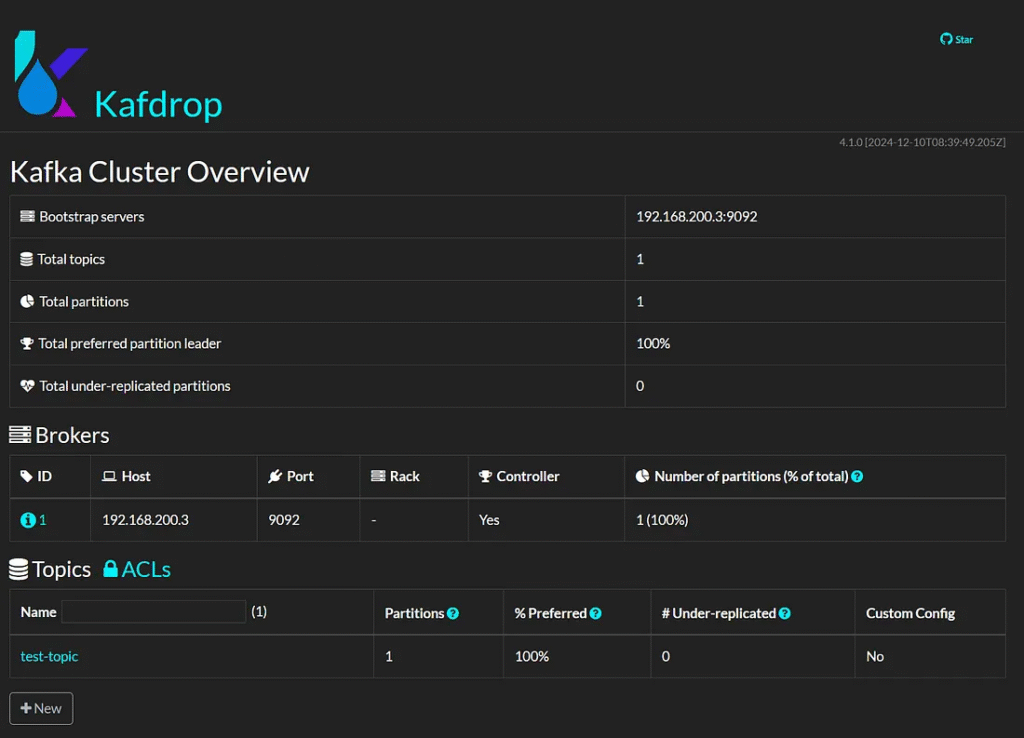
Step 3: Access Kafdrop
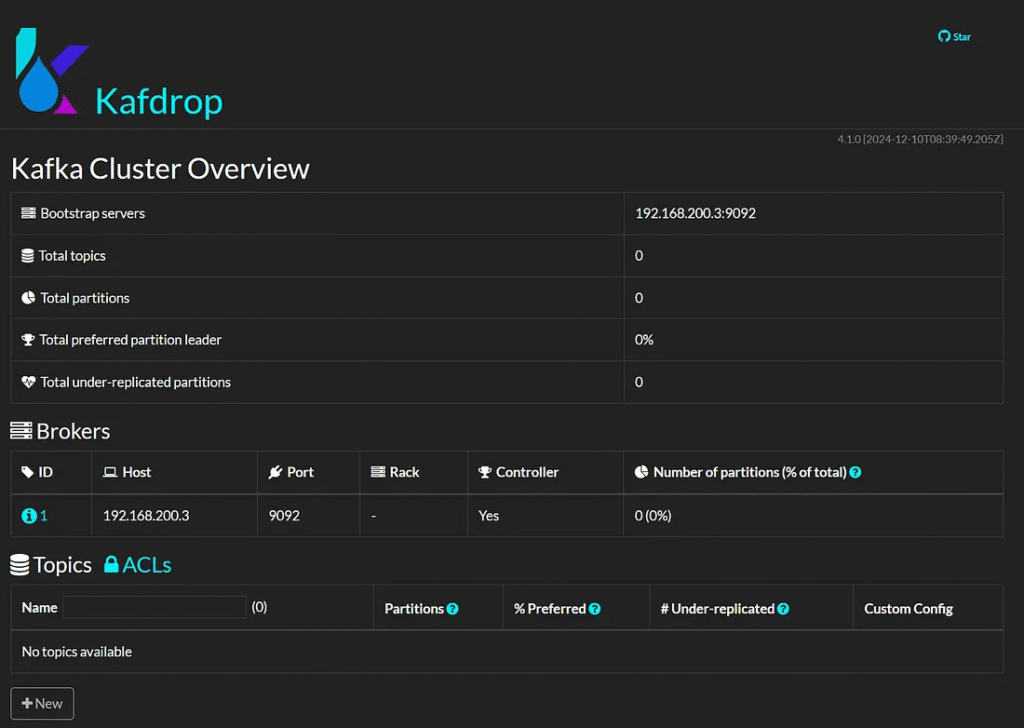
Open your browser and go to:
http://localhost:9000
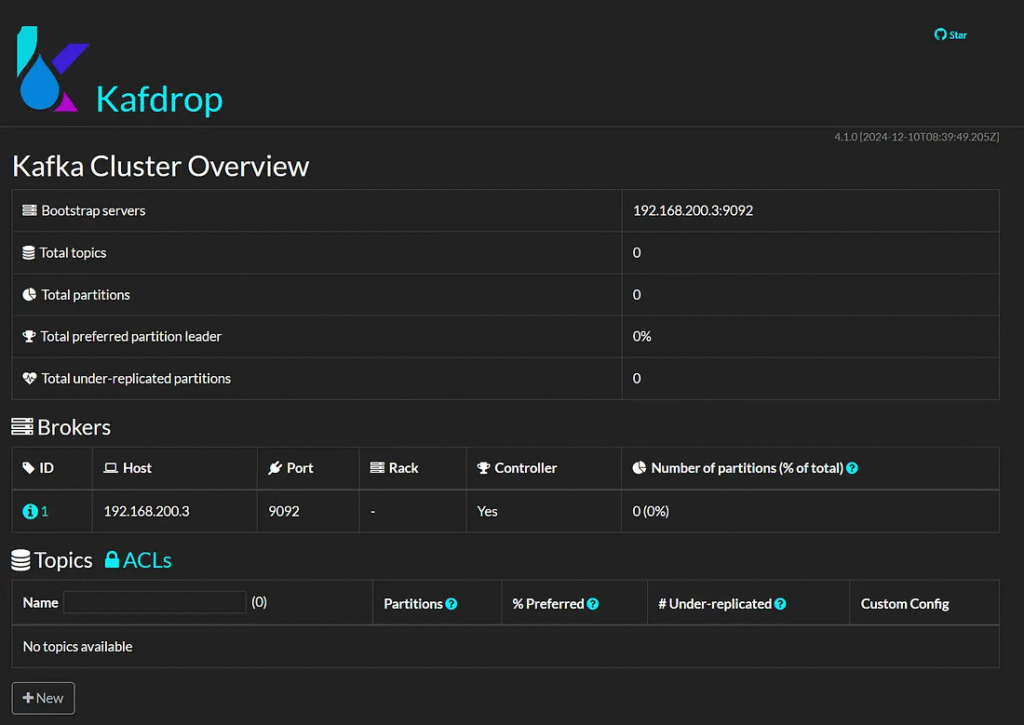
The Kafka UI dashboard should display brokers, topics, and messages.
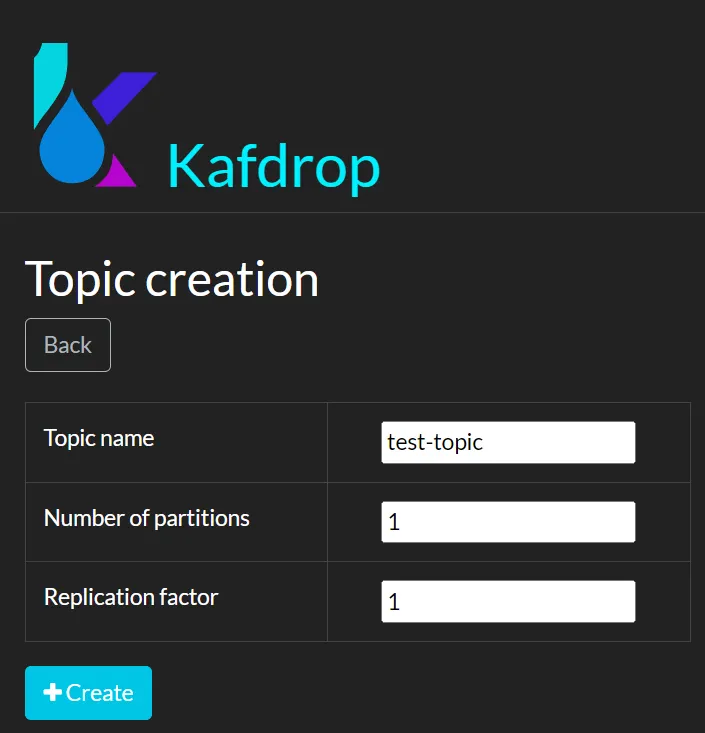
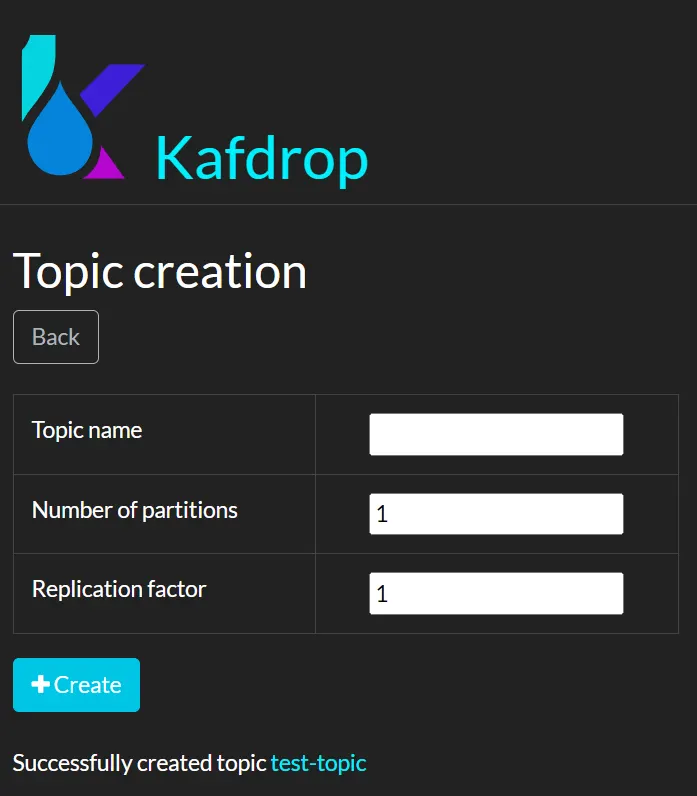
Create a topic
Option 2: Using AKHQ
AKHQ is another powerful Kafka UI with better security and access controls.

Home | AKHQ
Step 1: Add AKHQ to docker-compose.yml
  akhq:
    image: tchiotludo/akhq
    container_name: akhq
    ports:
      - "8080:8080"
    environment:
      AKHQ_CONFIGURATION: |
        akhq:
          connections:
            docker-kafka:
              properties:
                bootstrap.servers: "192.168.200.3:9092"
    depends_on:
      - kafka
    networks:
      kafka-network:
        ipv4_address: 192.168.200.5
Step 2: Restart Docker Compose
docker-compose up -d
Step 3: Access AKHQ
Visit:
http://localhost:8080
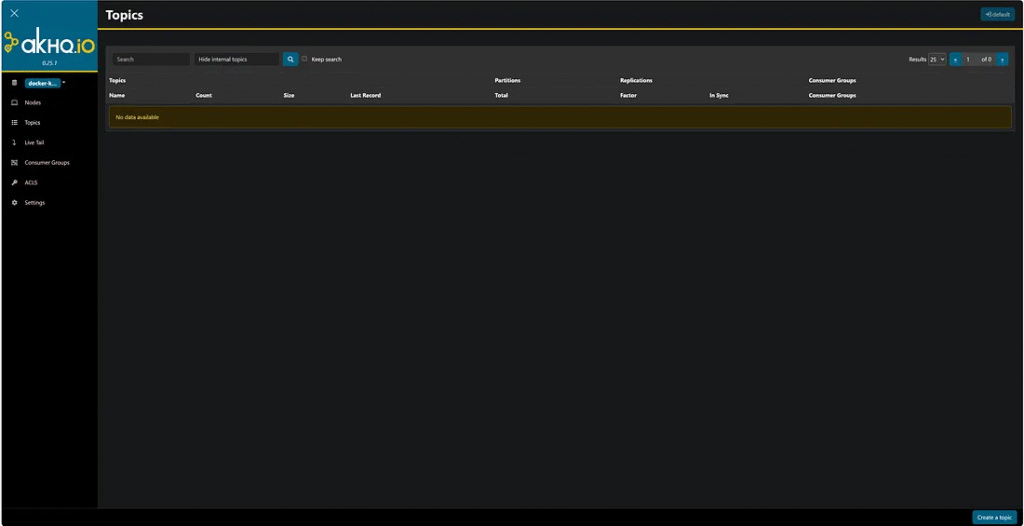
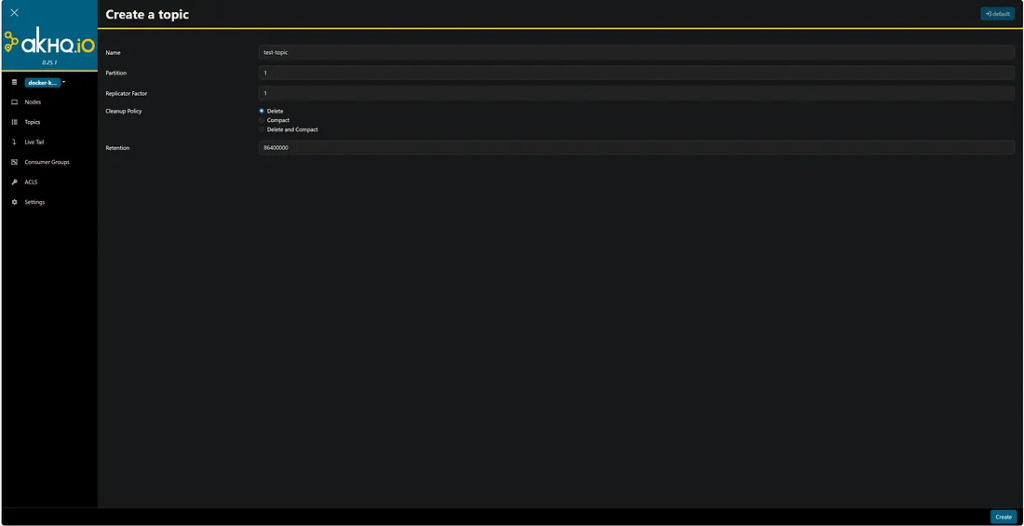
This UI provides features like consumer group monitoring, topic filtering, and schema registry support.
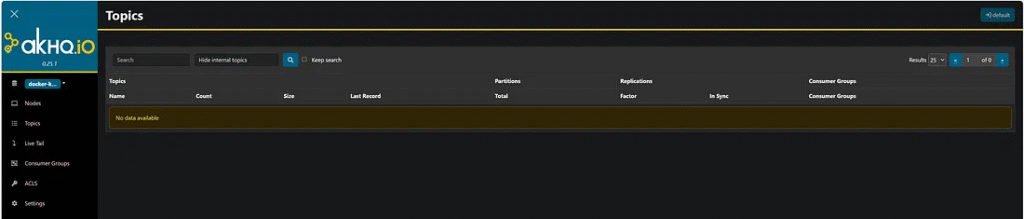
Create a topic

5. Managing Kafka with Docker
Stop Kafka and Zookeeper
docker-compose down
Restart Kafka
docker-compose up -d
View Kafka Logs
docker logs -f kafka
6. Troubleshooting
1. Kafka Not Starting?
Check the logs:
docker logs kafka
If the issue is related to Zookeeper, restart it first:
docker restart zookeeper
2. Cannot connect to Kafka?
Ensure the correct bootstrap server is set:
KAFKA_ADVERTISED_LISTENERS=PLAINTEXT://localhost:9092
If running on another machine, use:
KAFKA_ADVERTISED_LISTENERS=PLAINTEXT://<your-ip>:9092
3. UI Not Loading?
Check if the container is running:
docker ps
Restart the WebUI container:
docker restart kafdrop
Kafka Cluster with Docker Compose
This configuration includes:
- Three Zookeeper nodes for distributed coordination.
- Three Kafka brokers for redundancy and fault tolerance.
- Kafka UI (Kafdrop) for monitoring.
1. Create a docker-compose.yml File
Create a file named docker-compose.yml in your working directory, add the following:
networks:
  kafka-network:
    driver: bridge
    ipam:
      config:
        - subnet: 192.168.200.0/24  # Define a subnet for the services

services:
  zookeeper-1:
    image: wurstmeister/zookeeper
    container_name: zookeeper-1
    restart: always
    ports:
      - "2181:2181"
    environment:
      ZOO_MY_ID: 1
      ZOO_SERVERS: server.1=192.168.200.10:2888:3888 server.2=192.168.200.11:2888:3888 server.3=192.168.200.12:2888:3888
    networks:
      kafka-network:
        ipv4_address: 192.168.200.10

  zookeeper-2:
    image: wurstmeister/zookeeper
    container_name: zookeeper-2
    restart: always
    ports:
      - "2182:2181"
    environment:
      ZOO_MY_ID: 2
      ZOO_SERVERS: server.1=192.168.200.10:2888:3888 server.2=192.168.200.11:2888:3888 server.3=192.168.200.12:2888:3888
    networks:
      kafka-network:
        ipv4_address: 192.168.200.11

  zookeeper-3:
    image: wurstmeister/zookeeper
    container_name: zookeeper-3
    restart: always
    ports:
      - "2183:2181"
    environment:
      ZOO_MY_ID: 3
      ZOO_SERVERS: server.1=192.168.200.10:2888:3888 server.2=192.168.200.11:2888:3888 server.3=192.168.200.12:2888:3888
    networks:
      kafka-network:
        ipv4_address: 192.168.200.12

  kafka-1:
    image: wurstmeister/kafka
    container_name: kafka-1
    restart: always
    ports:
      - "9092:9092"
    environment:
      KAFKA_BROKER_ID: 1
      KAFKA_LISTENERS: PLAINTEXT://0.0.0.0:9092
      KAFKA_ZOOKEEPER_CONNECT: "192.168.200.10:2181,192.168.200.11:2181,192.168.200.12:2181"
      KAFKA_ADVERTISED_LISTENERS: PLAINTEXT://192.168.200.20:9092
      KAFKA_OFFSETS_TOPIC_REPLICATION_FACTOR: 3
    depends_on:
      - zookeeper-1
      - zookeeper-2
      - zookeeper-3
    networks:
      kafka-network:
        ipv4_address: 192.168.200.20

  kafka-2:
    image: wurstmeister/kafka
    container_name: kafka-2
    restart: always
    ports:
      - "9093:9092"
    environment:
      KAFKA_BROKER_ID: 2
      KAFKA_LISTENERS: PLAINTEXT://0.0.0.0:9093
      KAFKA_ZOOKEEPER_CONNECT: "192.168.200.10:2181,192.168.200.11:2181,192.168.200.12:2181"
      KAFKA_ADVERTISED_LISTENERS: PLAINTEXT://192.168.200.21:9093
      KAFKA_OFFSETS_TOPIC_REPLICATION_FACTOR: 3
    depends_on:
      - zookeeper-1
      - zookeeper-2
      - zookeeper-3
    networks:
      kafka-network:
        ipv4_address: 192.168.200.21

  kafka-3:
    image: wurstmeister/kafka
    container_name: kafka-3
    restart: always
    ports:
      - "9094:9092"
    environment:
      KAFKA_BROKER_ID: 3
      KAFKA_LISTENERS: PLAINTEXT://0.0.0.0:9094
      KAFKA_ZOOKEEPER_CONNECT: "192.168.200.10:2181,192.168.200.11:2181,192.168.200.12:2181"
      KAFKA_ADVERTISED_LISTENERS: PLAINTEXT://192.168.200.22:9094
      KAFKA_OFFSETS_TOPIC_REPLICATION_FACTOR: 3
    depends_on:
      - zookeeper-1
      - zookeeper-2
      - zookeeper-3
    networks:
      kafka-network:
        ipv4_address: 192.168.200.22

  kafdrop:
    image: obsidiandynamics/kafdrop
    container_name: kafdrop
    restart: always
    ports:
      - "9000:9000"
    environment:
      KAFKA_BROKER_CONNECT: "192.168.200.20:9092,192.168.200.21:9093,192.168.200.22:9094"
    depends_on:
      - kafka-1
      - kafka-2
      - kafka-3
    networks:
      kafka-network:
        ipv4_address: 192.168.200.30
2. Start the Kafka Cluster
Run the following command to start all services:
docker-compose up -d
This will start:
- 3 Zookeeper instances on ports 2181, 2182, 2183
- 3 Kafka brokers on ports 9092, 9093, 9094
- Kafdrop UI on port 9000
3. Verify the Kafka Cluster
To check if all services are running, execute:
docker ps
You should see all 7 containers (3 Zookeeper, 3 Kafka brokers, and 1 Kafdrop UI).
CONTAINER ID   IMAGE                       COMMAND                  CREATED              STATUS              PORTS                                                NAMES
8e41865a64d2   obsidiandynamics/kafdrop    "/kafdrop.sh"            About a minute ago   Up About a minute   0.0.0.0:9000->9000/tcp                               kafdrop
7a74b8b3f9a9   wurstmeister/kafka          "start-kafka.sh"         About a minute ago   Up About a minute   0.0.0.0:9094->9092/tcp                               kafka-3
b080b1479593   wurstmeister/kafka          "start-kafka.sh"         About a minute ago   Up About a minute   0.0.0.0:9093->9092/tcp                               kafka-2
b62738207c9b   wurstmeister/kafka          "start-kafka.sh"         About a minute ago   Up About a minute   0.0.0.0:9092->9092/tcp                               kafka-1
89a02cb38a9c   wurstmeister/zookeeper      "/bin/sh -c '/usr/sb…"   About a minute ago   Up About a minute   22/tcp, 2888/tcp, 3888/tcp, 0.0.0.0:2182->2181/tcp   zookeeper-2
fb331adfb2a2   wurstmeister/zookeeper      "/bin/sh -c '/usr/sb…"   About a minute ago   Up About a minute   22/tcp, 2888/tcp, 3888/tcp, 0.0.0.0:2181->2181/tcp   zookeeper-1
e1f886997f62   wurstmeister/zookeeper      "/bin/sh -c '/usr/sb…"   About a minute ago   Up About a minute   22/tcp, 2888/tcp, 3888/tcp, 0.0.0.0:2183->2181/tcp   zookeeper-3
To check the Kafka brokers:
docker exec kafka-1 kafka-topics.sh --bootstrap-server kafka-1:9092 --list
If the command runs successfully, the cluster is up.
4. Create a Topic with Replication
To create a topic named test-topic With 3 partitions and a replication factor of 3, run:
docker exec kafka-1 kafka-topics.sh --create --topic test-topic --partitions 3 --replication-factor 3 --bootstrap-server kafka-1:9092
To list topics:
docker exec kafka-1 kafka-topics.sh --list --bootstrap-server kafka-1:9092
5. Produce and Consume Messages
Produce Messages
Run a Kafka producer:
docker exec -it kafka-1 kafka-console-producer.sh --topic test-topic --bootstrap-server kafka-1:9092
Type messages and press Enter.
Consume Messages
Open another terminal and run:
docker exec -it kafka-2 kafka-console-consumer.sh --topic test-topic --from-beginning --bootstrap-server kafka-2:9093
You should see the messages from the producer.
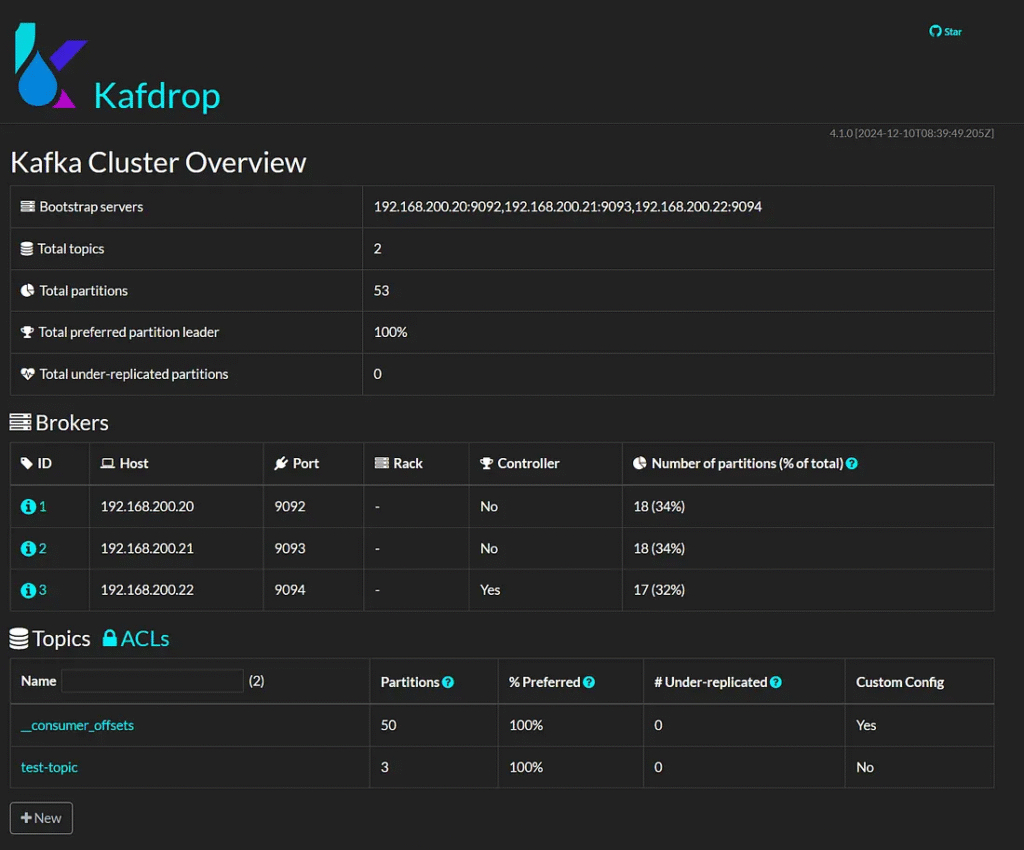
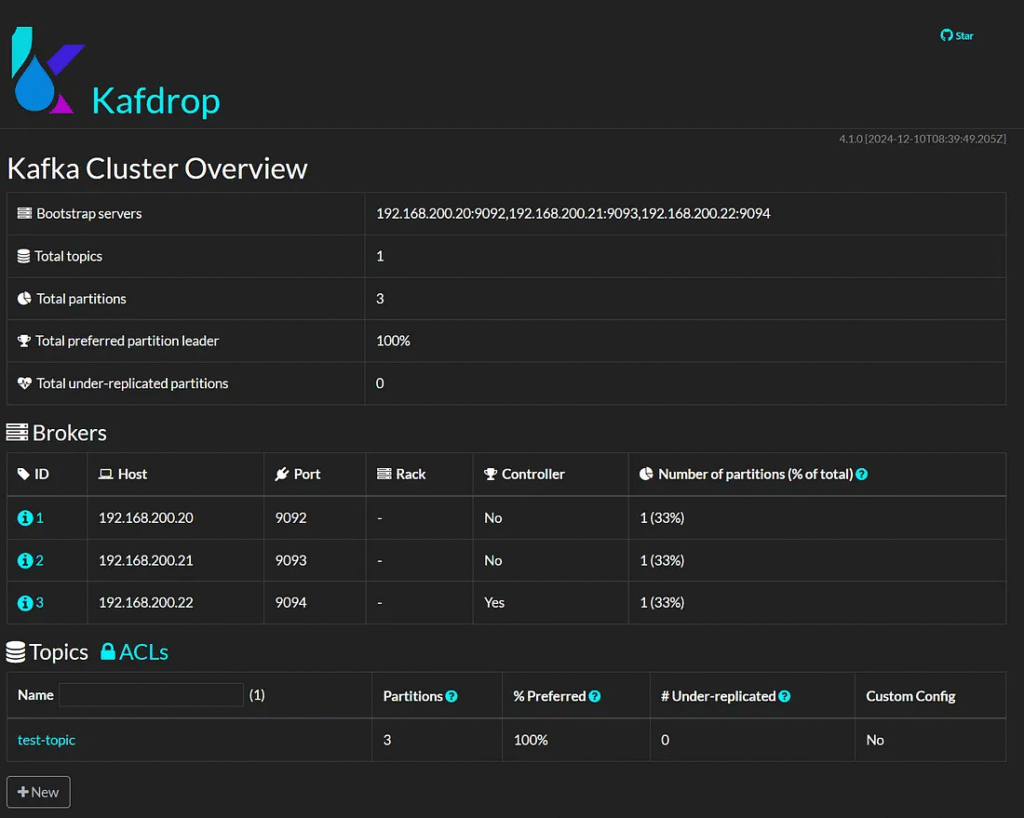
6. Monitor with Kafdrop
Open your browser and go to:
http://localhost:9000
You can now see:
- Brokers
- Topics
- Consumer Groups
- Message details
Conclusion
Running Kafka on Docker simplifies deployment, making managing Kafka brokers, topics, and consumers easier. Adding a WebUI like Kafdrop or AKHQ enhances monitoring and debugging. With Docker Compose, developers can quickly set up, test, and scale their Kafka environment.
This article was originally published on Medium.