Selenium automates browser tasks. For small projects, a single server works. But for large test suites, it isn’t enough. You need a scale. That’s where a Selenium Grid cluster comes in.
By running a Selenium cluster using Docker, you can scale tests across multiple browsers and machines. This article will show you how.
What Is a Selenium Cluster?
A Selenium cluster uses a hub and multiple nodes. The hub controls test execution. The nodes run the browsers. This lets you run tests in parallel across different browsers or devices.
Each node registers with the hub. Then, when you run a test, the hub sends it to an available node.
Docker makes this setup easy. You don’t need to install Chrome or Firefox manually. Each container runs its instance of the browser.
Let’s walk through setting up a complete Selenium cluster using Docker.
Step 1: Install Docker and Docker Compose
First, ensure Docker is installed. If not, get it from docker.com. Install Docker Compose as well. It helps manage multiple services.
Verify the installation:
docker --version
docker-compose --version
If both commands work, you’re ready.
Step 2: Create Docker Compose File
Now, create a docker-compose.yml file. This file will define your Selenium hub and nodes.
services:
  selenium-hub:
    image: selenium/hub
    container_name: selenium-hub
    ports:
      - "4444:4444"

  chrome:
    image: selenium/node-chrome
    volumes:
      - /dev/shm:/dev/shm
    depends_on:
      - selenium-hub
    environment:
      - SE_EVENT_BUS_HOST=selenium-hub
      - SE_NODE_MAX_INSTANCES=2
      - SE_NODE_MAX_SESSIONS=2
      - SE_VNC_PASSWORD=secret123

  firefox:
    image: selenium/node-firefox
    volumes:
      - /dev/shm:/dev/shm
    depends_on:
      - selenium-hub
    environment:
      - SE_EVENT_BUS_HOST=selenium-hub
      - SE_NODE_MAX_INSTANCES=2
      - SE_NODE_MAX_SESSIONS=2
      - SE_VNC_PASSWORD=secret123
This setup includes:
- A hub running on a port
4444 - A Chrome node
- A Firefox node
Each node automatically connects to the hub.
Step 3: Start the Selenium Cluster
Run the cluster using:
docker-compose up -d
This command starts all services in the background. To check their status:
docker ps
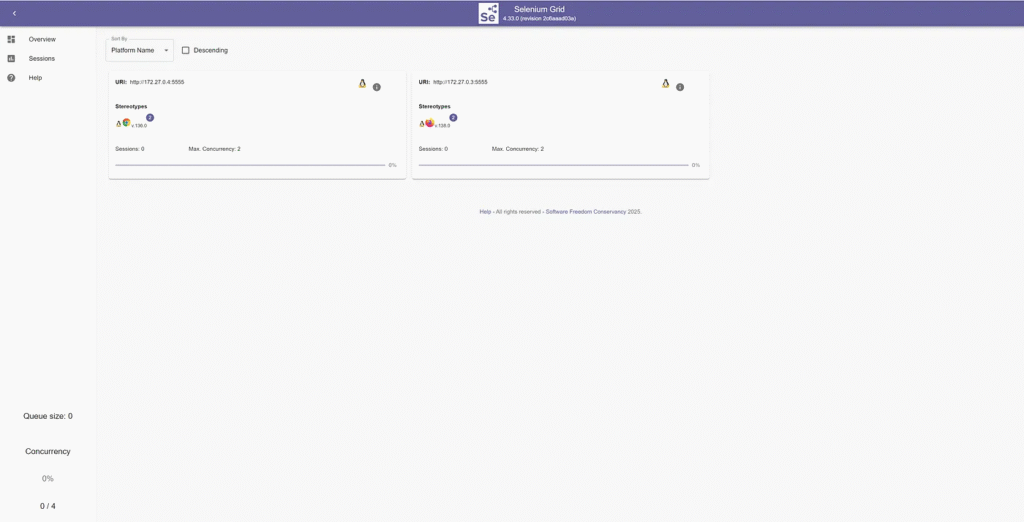
You should see three containers: the hub, the Chrome node, and the Firefox node.
Now, open your browser and visit:
http://localhost:4444/ui/
You’ll see the Selenium Grid UI. It shows connected nodes and available sessions.
Step 4: Connect Java Code to the Selenium Hub
Now that the cluster is ready, write Java code to connect to the hub.
Here’s a simple test using Selenium with Chrome:
import org.openqa.selenium.WebDriver;
import org.openqa.selenium.remote.RemoteWebDriver;
import org.openqa.selenium.chrome.ChromeOptions;

import java.net.URL;

public class ClusterTest {
    public static void main(String[] args) throws Exception {
        URL hubUrl = new URL("http://localhost:4444/wd/hub");
        ChromeOptions options = new ChromeOptions();

        WebDriver driver = new RemoteWebDriver(hubUrl, options);
        driver.get("https://google.com");
        System.out.println("Title: " + driver.getTitle());
        driver.quit();
    }
}
This code connects to the hub. The hub then chooses a free Chrome node. That node runs the test.
Step 5: Scale the Nodes
You can easily scale the number of nodes. For example, to add more Chrome nodes:
docker-compose up --scale chrome=3 -d
Now your cluster has three Chrome nodes. Selenium will run up to six tests in parallel (two per node).
To confirm, go back to the Grid UI. It will show the new nodes.
Step 6: Use TestNG for Parallel Execution
To fully utilize the cluster, run tests in parallel. Tools like TestNG can help.
Directory structure
my-test-project/
│
├── src/
│   ├── main/
│   │   └── java/
│   │       └── your/package/if/needed/
│
│   └── test/
│       ├── java/
│       │   └── your/tests/
│       │       └── SeleniumTest1.java
│       │       └── SeleniumTest2.java
│       └── resources/
│           └── testng.xml
│
├── pom.xml
└── README.md
Here’s a simple TestNG setup:
<suite name="ParallelTests" parallel="tests" thread-count="4">
  <test name="Test1">
    <classes>
      <class name="test.SeleniumTest1"/>
    </classes>
  </test>
  <test name="Test2">
    <classes>
      <class name="test.SeleniumTest2"/>
    </classes>
  </test>
</suite>
This configuration runs tests in parallel using multiple threads. Selenium Grid distributes the load across nodes.
Maven Dependency
<!-- TestNG -->
<dependency>
    <groupId>org.testng</groupId>
    <artifactId>testng</artifactId>
    <version>7.11.0</version>
    <scope>test</scope>
</dependency>
Example Test Class
public class SeleniumTest1 {

    private WebDriver driver;

    @BeforeMethod
    public void setUp() throws Exception {
        // Change the host if your Selenium Grid is remote
        URL gridUrl = new URL("http://localhost:4444/wd/hub");

        DesiredCapabilities caps = new DesiredCapabilities();
        caps.setBrowserName("chrome");

        driver = new RemoteWebDriver(gridUrl, caps);
    }

    @Test
    public void openExampleDotCom() {
        driver.get("https://google.com");
        String title = driver.getTitle();
        System.out.println("Page title is: " + title);
    }

    @AfterMethod
    public void tearDown() {
        if (driver != null) {
            driver.quit();
        }
    }

}
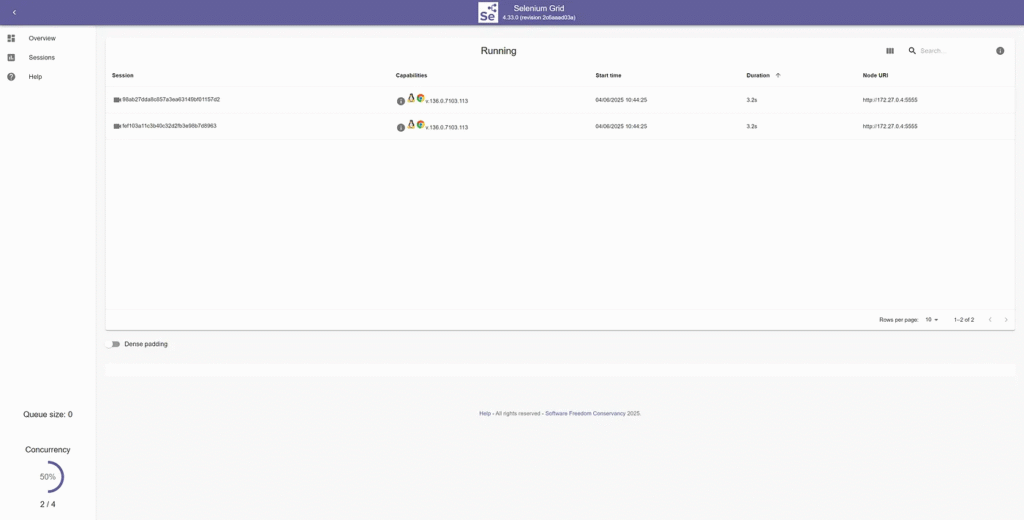
When you run testng.xml, the Selenium grid will show running tests on the sessions page.
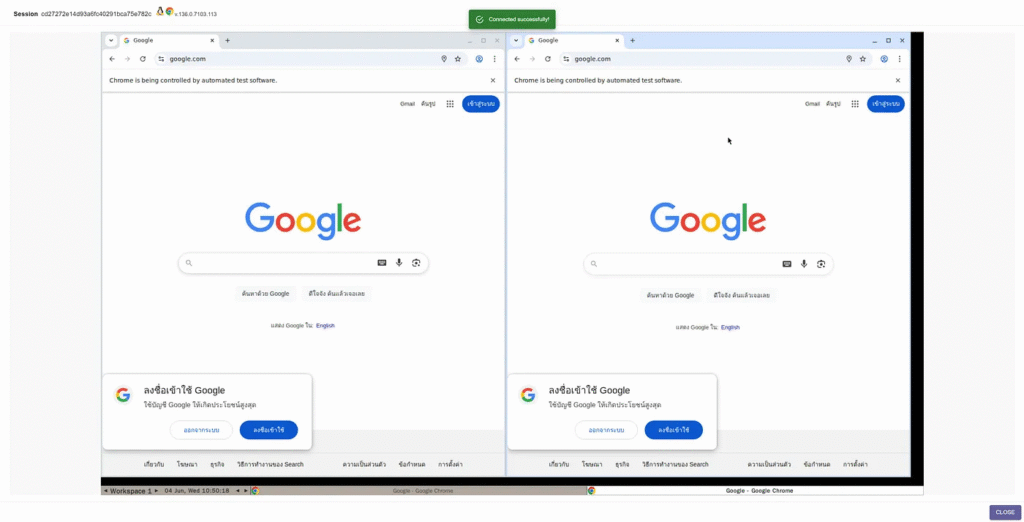
You can view the real-time test on each session by clicking on the video icon.
Advantages of a Selenium Docker Cluster
- Scalability: Add more nodes anytime.
- Parallel Tests: Run tests faster by splitting them.
- Cross-Browser Testing: Run Chrome and Firefox simultaneously.
- Consistency: Containers provide identical environments every time.
- Portability: Share your cluster setup using the same
docker-compose.yml.
Troubleshooting Tips
Problem: Nodes are not registering
Solution: Make sure SE_EVENT_BUS_HOST=selenium-hub is set. Also, check container logs.
Problem: Tests timeout or fail randomly
Solution: Add wait times. Also, increase SE_NODE_MAX_SESSIONS if needed.
Problem: Tests are not using the expected browser
Solution: Explicitly set browser options in your Java code.
FirefoxOptions options = new FirefoxOptions();
WebDriver driver = new RemoteWebDriver(new URL("http://localhost:4444/wd/hub"), options);
When to Use a Cluster
You should use a Selenium cluster if:
- Your test suite is large
- You need to test multiple browsers
- You want faster feedback
- You plan to integrate with a CI/CD pipeline
For example, in Jenkins, you can spin up the cluster before tests and shut it down afterward.
Finally
A single Selenium server works fine — until it doesn’t. When your project grows, so should your test setup. Using Docker and Selenium Grid together gives you the power to scale your testing capabilities.
Setting up a cluster only takes a few lines of code. Once it’s running, your tests become faster, more reliable, and easier to manage.
So, don’t wait. Add Docker-based Selenium clusters to your QA toolkit today. You’ll boost test speed, increase coverage, and streamline automation.
This article was originally published on Medium.